 Français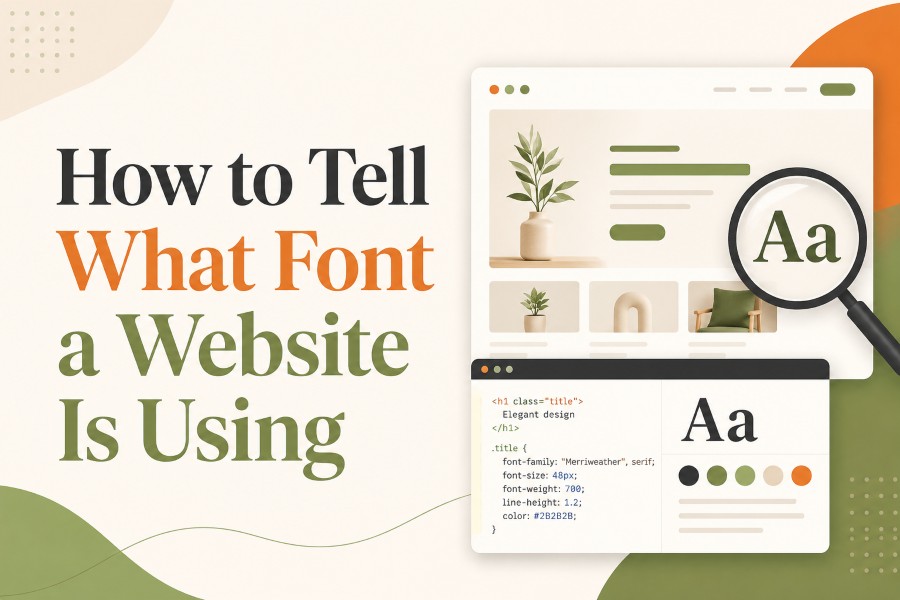
You visit a website, notice a clean heading or beautiful paragraph style, and immediately wonder how to find the font. It might be a sleek Google Font, a premium Adobe Font, a custom brand typeface, or simply a system font that looks great because of spacing and layout. The challenge is that most websites do not display font names directly on the page.
That is why learning how to tell what font a website is using is useful for designers, bloggers, students, developers, WordPress users, marketers, and business owners. Once you know where to look, you can identify website fonts using browser inspect tools, CSS font-family values, computed styles, font finder extensions, and visual matching tools.
The key is understanding that a website may list several fonts in a CSS font-family stack. The first font in the list is not always the font you actually see. If the first font is not loaded, the browser may use a fallback font. Some websites also use custom web fonts, variable fonts, or font files with internal names that look different from the public font name.
This guide explains the easiest ways to check website fonts, confirm the real loaded font, and find similar options for your own website or design project.
Why Website Fonts Can Be Hard to Identify
Website fonts are not always as simple as they look. A heading may appear to use one font, while the CSS lists several possible fonts. This happens because websites often use a font-family stack, which is a list of font choices the browser follows in order.
For example, a website might use this CSS:
font-family: Inter, Arial, sans-serif;
This means the browser tries to display Inter first. If Inter is available or loaded correctly, you see Inter. If it fails, the browser tries Arial. If Arial is not available, it falls back to a generic sans serif font.
That is why simply reading the first font in the CSS is not always enough. To identify website font usage correctly, you need to confirm which font the browser actually rendered. This is where computed styles and font inspection tools become useful.
Another reason website fonts can be confusing is that some brands use custom fonts. A company may load a font file with an internal name that is different from the public font family name. You might see a name in the code that does not appear in Google Fonts or Adobe Fonts.
Websites can also use different fonts for different areas. A homepage may use one font for headings, another for paragraphs, and another for buttons or navigation. A blog article may use a serif body font, while the header menu uses a clean sans serif.
So when you ask, “What font is this website using?” the better question is: “Which font is this exact text element using?” Always inspect the specific heading, paragraph, button, or menu text you want to identify.
How to Tell What Font a Website Is Using with Inspect Tool
The browser inspect tool is the most reliable way to find a website font. It shows the CSS applied to a selected element, including font-family, font-size, font-weight, line-height, and other typography settings.
Step 1: Open the Website
Open the website in Google Chrome, Microsoft Edge, Firefox, or Safari. Chrome and Edge are often easiest for beginners because their developer tools are similar.
Choose the exact text you want to inspect. This could be a heading, paragraph, button, navigation item, or logo-style text.
Step 2: Right-Click the Text
Right-click directly on the text and select Inspect or Inspect Element. This opens the browser developer tools and highlights the HTML element connected to that text.
If the wrong element is selected, move your cursor inside the Elements panel until the correct text area is highlighted on the page.
Step 3: Look for CSS Font-Family
In the Styles panel, look for a CSS property called font-family. This property tells the browser which font stack is being requested.
You may see something like:
font-family: "Roboto", Arial, sans-serif;
This means the website is asking the browser to use Roboto first, then Arial, then a generic sans serif fallback.
Step 4: Check the Computed Styles
The Styles panel shows CSS rules, but the Computed panel helps you understand the final result after all styles are applied. Look for font-family in the Computed tab.
This is useful because websites often have many CSS rules, and some rules override others. The computed value shows the final font-family applied to the selected element.
Step 5: Confirm the Rendered Font
In some browsers, font tools or font panels can show which font was actually rendered. This matters because a listed font may not load correctly. If the browser falls back to another font, the rendered font can be different from the first CSS value.
Use this simple method:
- Inspect the exact text.
- Find the
font-family. - Check Computed styles.
- Look for the rendered or used font if your browser shows it.
- Search the font name in Google Fonts, Adobe Fonts, or the website’s CSS files.
This process works for most websites, including WordPress, Webflow, Shopify, SaaS websites, blogs, and landing pages.
Best Font Finder Tools and Extensions
Browser developer tools are accurate, but font finder extensions are faster. They are helpful when you want a quick answer without reading CSS.
Here are common tools people use to identify website fonts:
WhatFont
WhatFont is one of the most popular browser extensions for checking fonts on a website. You can hover over text and see font information quickly. It is useful for beginners and content creators.
Fonts Ninja
Fonts Ninja can help identify fonts used on websites and often gives extra details such as size, weight, and style. It is useful for designers who want more typography information.
Fontanello
Fontanello is another simple extension that can show font-family, size, weight, color, and other style details from selected text.
Chrome DevTools
Chrome DevTools is best when you want accuracy. It lets you inspect HTML, CSS, computed styles, and loaded resources.
Firefox Inspector
Firefox includes useful developer tools and font inspection features. It can help you see font details for selected elements.
Safari Web Inspector
Safari Web Inspector is useful for Mac users who want to check fonts on websites, especially when testing how pages appear in Safari.
Microsoft Edge DevTools
Edge DevTools works similarly to Chrome DevTools because both are Chromium-based. It is reliable for checking CSS font-family and computed styles.
A good workflow is to use an extension first, then confirm with browser inspect tools if accuracy matters. This is especially important when working on a client design, brand style guide, or website redesign.
How CSS Font-Family Stacks Work
To identify website fonts correctly, you need to understand CSS font-family stacks. A font stack is a list of fonts written in CSS. The browser reads the list from left to right and uses the first available font it can render.
Example:
font-family: "Poppins", "Helvetica Neue", Arial, sans-serif;
In this case, the browser tries Poppins first. If Poppins loads, that is the displayed font. If not, it tries Helvetica Neue. If that is unavailable, it tries Arial. If none of those work, it uses a generic sans serif font.
This matters because beginners often assume the first font in the stack is always the real font. That is not always true.
There are also generic family names such as:
serifsans-serifmonospacecursivefantasysystem-ui
A generic family name is not a specific font. It tells the browser to choose a general type style. For example, sans-serif may look different across operating systems because the browser chooses a local default.
System font stacks can be even more confusing. A website may use:
font-family: system-ui, -apple-system, BlinkMacSystemFont, "Segoe UI", sans-serif;
This type of stack uses the default interface font of the visitor’s device. On Apple devices, it may look like San Francisco. On Windows, it may look like Segoe UI. On Android, it may look like Roboto. That means the same website can appear slightly different depending on the device.
A practical formula helps:
Real Website Font = CSS Font-Family + Loaded Web Font + Browser Fallback + Computed Style
This means you should check not only the font list, but also whether the font is loaded and which style the browser finally renders.
How to Find Fonts from Website Files
Sometimes the font-family value is not enough. If a website uses a custom web font, you may need to check the site’s loaded font files.
In browser developer tools, open the Network panel and filter by fonts. You may see files ending in:
.woff.woff2.ttf.otf
Modern websites often use .woff2 because it is efficient for web delivery. The file name may include the font family, weight, or style, such as Inter-Regular.woff2 or BrandSans-Bold.woff2.
You can also search the page source or CSS files for @font-face. This CSS rule tells the browser where a web font file is loaded from and what font-family name is assigned to it.
A typical example looks like this:
@font-face { font-family: "Brand Sans"; src: url("/fonts/brand-sans.woff2") format("woff2"); }
This tells you that the website defines a web font called Brand Sans and loads it from a font file.
However, be careful. Finding a font file does not mean you have permission to download, reuse, or copy it. Many fonts are licensed. You can identify the font for inspiration, but you should use a properly licensed font for your own project.
If the font is available through Google Fonts, you can usually use it under its listed license. If it comes from Adobe Fonts, a premium foundry, or a custom brand system, check usage rights before using it commercially.
Common Mistakes When Checking Website Fonts
Many people make quick assumptions when trying to identify website typography. These mistakes can lead to the wrong font name or a poor design choice.
The first mistake is inspecting the wrong element. A website may use one font for the headline and another for the paragraph. Make sure you select the exact text you want.
The second mistake is trusting only the first font in the font-family stack. The browser may be using a fallback font if the first one fails to load.
The third mistake is ignoring font weight. A font can look completely different at 400, 600, 700, or 900 weight. If you like a heading, note the font family and the font weight.
The fourth mistake is ignoring letter spacing and line height. Sometimes people think they love a font, but they actually love the spacing, size, and layout. Typography is more than the font name.
The fifth mistake is confusing image text with live text. Some logos, banners, and hero graphics are images, not selectable web text. Browser inspect tools may not reveal a font if the text is inside an image. In that case, use visual font matching tools or image-based font identifiers.
The sixth mistake is copying a brand font without checking licensing. Just because you can identify a font does not mean you can use it freely.
A simple checklist helps:
- Inspect the exact text element.
- Check
font-family. - Check computed styles.
- Check font weight and size.
- Look for loaded font files if needed.
- Confirm whether it is live text or image text.
- Find a licensed or similar font before using it.
This checklist keeps your font research accurate and practical.
Choosing a Similar Font for Your Own Website
After you identify a website font, your next step is often choosing something similar for your own project. You do not always need the exact same font. In many cases, a similar licensed font is safer and easier to use.
Start by asking what you like about the font. Is it clean? Friendly? Premium? Minimal? Bold? Editorial? Playful? Technical? The visual personality matters as much as the name.
Then check the font category. Is it serif, sans serif, monospace, display, script, or handwritten? If the original font is a modern sans serif, you can search Google Fonts or Adobe Fonts for similar modern sans options. If it is an editorial serif, look for readable serif families.
Next, compare font weight. A 700-weight heading may look strong, while the same font at 400 may feel plain. Always test the weight you plan to use.
You should also test readability on real content. A font might look excellent in a one-word heading but feel uncomfortable in a full paragraph. Use sample headings, body text, buttons, and captions before choosing.
Tools like Figma, Canva, WordPress editors, Webflow, Shopify theme settings, Google Fonts, and Adobe Fonts can help you test typography quickly.
For creative heading ideas, you can explore a Special font generator. For website-focused text styling and typography inspiration, try web font tools. These tools can support creative exploration, but for a real website font, use properly licensed web fonts in your CSS or design system.
The best result is not always the exact same font. It is a font that fits your brand, loads well, reads clearly, and works across devices.
Conclusion
Learning how to tell what font a website is using is easier once you know where to look. Start with the exact text you like, right-click it, and inspect the element. Check the CSS font-family, then confirm the computed style or rendered font when possible. If you want a faster route, use font finder extensions like WhatFont, Fonts Ninja, or Fontanello.
The main thing to remember is that websites often use font stacks, fallbacks, custom web fonts, and different fonts for different sections. A heading, button, menu, and paragraph may all use different typography settings. Do not stop at the first font name you see.
For the best result, combine browser inspect tools with common sense. Check the font family, weight, size, spacing, and licensing. Then choose a similar font that fits your own brand and works well on desktop and mobile. That approach will help you turn font inspiration into a clean, usable website design.
FAQs
How can I identify a font on a website?
Right-click the text and choose Inspect. Look for the CSS font-family in the Styles or Computed panel. You can also use font finder extensions like WhatFont or Fonts Ninja if you want a faster beginner-friendly way to identify website fonts.
What is the easiest website font finder?
WhatFont is one of the easiest tools for beginners because it lets you hover over text and view font details quickly. Fonts Ninja and Fontanello are also useful. For the most accurate result, confirm the font with browser developer tools.
Why does CSS show more than one font?
CSS often uses a font-family stack. The browser tries the first font, then moves to the next if the first is unavailable or fails to load. That is why you should check computed styles or rendered fonts before assuming the first listed font is correct.
Can I find a font from a website image?
Browser inspect tools work best on live text, not image text. If the text is part of an image, use an image-based font identifier or visual matching tool. You can also compare the image manually with fonts from Google Fonts or Adobe Fonts.
Can I copy a font from another website?
You can identify a font for inspiration, but you should not copy or reuse font files without permission. Fonts may require licenses. Use Google Fonts, Adobe Fonts, or properly licensed alternatives for your own website or commercial design project.
How do I know if a website uses Google Fonts?
Inspect the page and check the CSS or Network panel for font files or Google Fonts URLs. You may also see font names listed in the CSS font-family. Some websites load Google Fonts through themes, builders, or external stylesheets.